Pricing Update Effective September 1, 2026
Buddi Billing: Features
How to Access Billing
Frequently Asked Questions (FAQs)
- Paying Outstanding Balances (Failed Payments)
- Selecting a Plan
- Updating Billing Details
- Adding a New Service
- Changing Subscription Terms
- Downloading Invoices
- Store Management for Chains with Multiple Locations
We’re here to help. If you have questions about invoices, billing history, or your subscription—or anything not covered in this guide—our support team is happy to assist. Email support@buddi.io to create a new ticket.
Pricing Update Effective September 1, 2026
Buddi subscription pricing is being updated effective September 1, 2026.
If your subscription renews on or after September 1, 2026, your renewal invoice will reflect the updated pricing for your plan. Any eligible discounts, such as annual or chain discounts, will continue to apply.
If your payment amount looks incorrect, please contact us.
Buddi Billing: Features
- Select and manage your subscription plans
- Enter and update payment information
- Credit Card
- Pre-authorized Debit (PAD)
- View and download invoices
How to Access Billing
Master Admin / 'Manager' Accounts only
1. Log into the Admin Portal:
Go to app.buddi.io and log in with your Master Admin credentials.
2. Click on the user (person) icon in the top-right > select 'Billing'
3. Go to 'Customer Billing Portal':
You can manage your subscription, update payment information, and download historical invoices here.
NOTE: Only Master Admin users can access 'Buddi Billing' in the Admin Portal, unless an additional staff account is created with 'Manager' permissions enabled (those users can also access Billing).Frequently Asked Questions
Buddi Billing
Failed Payments
What happens if my last subscription payment failed?
Not making payment could result in temporary suspension of your menu.
If a payment fails, you’ll be notified by email:
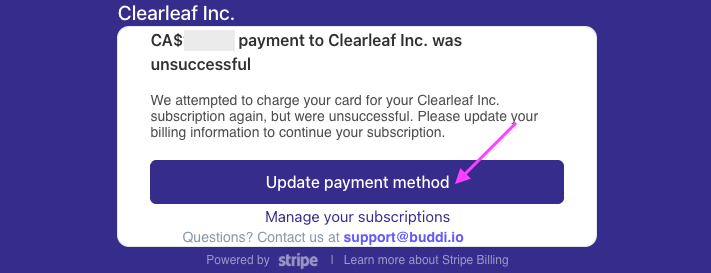
How to Resolve a Failed Payment:
- Click 'Update payment method' in your failed payment email (looks like the screenshot above) to update your billing information and process the missing payment;
or
- Go to Admin Portal > Billing to access and pay your invoice:
- Sign into the Admin Portal,
- Click on the user (person) icon (top-right) > select 'Billing'
- Go to 'Customer Billing Portal'
- Click 'Pay Invoice' to process the missing payment
NOTE: This process applies even if you are re-entering the same card.
To keep your services running and avoid late charges, please update payment details promptly.
Can I retry a failed payment?
- Please follow the steps above on 'How to Resolve a Failed Payment' to retry payment again.
I’m having trouble accessing the Billing page. What should I do?
If you can’t access Billing, follow the troubleshooting steps in our Cannot Access Billing article.
- If you still can't access after following the guide, please contact support@buddi.io
Why is the Billing page showing the wrong number of stores?
If the number of stores shown at checkout doesn’t match your actual setup, please don’t proceed with payment. Reach out to support@buddi.io so correct the configuration on our end before you complete your transaction.
What if the calculations are wrong?
- If your payment amount looks incorrect, please contact support@buddi.io
Subscription Management
Selecting a Plan
How do I know which plan to choose?
Buddi offers these subscription plans:
- Embedded Menu: An online menu that embeds into your existing website.
- Kiosk: An in-store menu for tablet devices; available as an add-on for $49/month per store.
- Embedded Menu + Kiosk (Add-on): Deliver a complete omni-channel experience.
- Buddi Sites: Your own cannabis website, managed in Buddi and found on Google.
For further assistance on which plan to choose, contact support@buddi.io.
Updating Billing Details
How do I change my payment card details?
How to Update Payment Card
- Log into the Admin Portal:
Go to app.buddi.io and log in with your Master Admin credentials. - Click on the user (person) icon in the top-right > select 'Billing'
- Go to 'Customer Billing Portal'
- Click '+ Add payment method'
NOTE: If you have multiple payment methods saved, make sure the correct one is set as the default for automatic payments. Click the three dots next to the card to update this.How do I update my personal info that's shown on the invoice?
- On the same page in the 'Customer Billing Portal', click 'Update information' in the BILLING INFORMATION section. Revised details will be reflected on your next invoice.
Can I sign up for pre-authorized debit (PAD) to pay for my subscription?
- Yes. Buddi now offers automated payments directly from your bank account
- Instructions to set up PAD are provided below
How to Set Pre-Authorized Debit (PAD) as your Payment Method
- Log into the Admin Portal:
Go to app.buddi.io and log in with your Master Admin credentials. - Click on the user (person) icon in the top-right > select 'Billing'
- Go to 'Customer Billing Portal'
- Click '+ Add payment method'
- Select 'Pre-authorized Debit' > Enter your Full Name + Email > click 'Add' to initialize setup.
PAD can be set up either by connecting your online banking account directly in Stripe, or by entering your banking details manually and verifying two small micro-deposits (1-2 business days).
Adding a New Service
NOTE: We recommend making changes 1-2 days before your next billing date to add a new service (E-Comm/Kiosk) or to change your subscription term (monthly/annual).

This will keep your billing cycles aligned. If you would like to complete the process sooner, please reach out to support@buddi.io to make arrangements.
How do I add a new service to my subscription?
If you would like to add a new service to your plan or upgrade to Buddi Sites, please contact support@buddi.io before making changes in Billing.
Our team will confirm:
- Which service you want to add
- The effective date
- Any prorated billing impact
- Whether the change should take effect immediately or on your next billing date
We generally recommend aligning subscription changes with your next billing date whenever possible. This helps keep your billing cycle clean and avoids unnecessary prorated charges.
If the change needs to take effect sooner, our team will confirm the setup and billing details with you before the service is activated.
Changing Subscription Terms
How do I switch between monthly and annual billing?
How to Switch from Monthly → Annual:
On the day before your next billing date:
- Go to Admin Portal > Billing
- Click 'Change Plan'
- Select 'Annual'
- Hit 'Continue to Payment'
- Fill in your card details and click 'Subscribe'
How to Switch from Annual → Monthly:
- As outlined in our Billing & Cancellation Policy, subscriptions renew automatically on your billing date. Switching from annual to monthly is only possible at the end of your current annual billing cycle.
- On the day before your renewal date, you can follow the same process as above, but choose 'Monthly' in Step 3.
How do I cancel my subscription?
Cancellations:
- You can cancel your subscription anytime in Admin Portal > Billing > 'Customer Billing Portal'
- Services will remain active until the end of your current billing period.
- To avoid further charges, cancel at least one day before your next billing date.
- Refunds are not issued for unused time on annual plans.
Please email support@buddi.io before cancelling so we can assist with next steps and note the changes on our side.Billing & Cancellation Policy
- Client Responsibility: Customers are solely responsible for managing their subscription, including cancellations. Buddi employees do not cancel subscriptions on behalf of customers.
- Billing Cycle: Your subscription renews automatically on your billing date.
- Cancellations: To avoid being charged for the next cycle, you must cancel before your renewal date.
- Refunds: We are unable to process refunds for charges beyond 72 hours after billing.
Downloading Invoices
Can I download my invoices?
- Yes. Once a payment has been processed, a PDF receipt is automatically generated. You can download paid invoices at any time in the Admin Portal > Billing > 'Customer Billing Portal'.
Can I receive invoices automatically by email?
- No, invoices cannot be automatically emailed. Please download them directly from your 'Customer Billing Portal'.
Store Management
for Chains with Multiple Locations
I am opening an additional store location. How do I activate its subscription?
- Buddi will process a pro-rated one-time payment starting from the day your new store goes live; an invoice will be provided. After that, the store will be added to your regular billing cycle.
How does a one-time payment work when I add a store mid-cycle?
You will be charged a prorated amount from the store’s activation date to your next billing cycle. After that, the store will be included in your regular monthly or annual invoice.
I’ve closed a store location. How do I cancel its subscription?
- To stop further billing for that location, please notify support@buddi.io and confirm the closing date. Our team will update your account so that you are charged the correct number of locations on your next billing date.
Can I get a discount on my subscription?
Buddi offers eligible discounts for annual subscription terms and qualifying multi-location chains. If a discount applies to your account, it may appear automatically at checkout.
If you believe you are eligible for a discount and do not see it reflected in Billing, please contact support@buddi.io before completing payment so we can review your account.
Article: Choosing a Buddi Plan
Article: Cannot Access Billing
Was this article helpful?
That’s Great!
Thank you for your feedback
Sorry! We couldn't be helpful
Thank you for your feedback
Feedback sent
We appreciate your effort and will try to fix the article